How to Turn Off Translation on WhatsApp (Phone, Samsung and PC)
By TapScriber Team
Published 8 min read

To turn off translation on WhatsApp you first need to know what’s doing the translating. If it’s WhatsApp’s own feature, tap and hold the message, tap the three dots menu and choose Remove translation, and on Android also switch off translation of new messages in that chat. If your phone is doing it, you turn it off in the phone’s settings (Galaxy AI on Samsung, Live Translate on Pixel) or in the Google Translate or Gboard app.
A computer is a different story. WhatsApp Web doesn’t translate anything, so if you see translations there they come from an extension or from your browser. Below you’ll find how to tell each case apart and how to switch it off.
Which translator are you seeing on WhatsApp?
People say “the WhatsApp translator” about several things that have nothing to do with each other. Some belong to WhatsApp and others to your phone or keyboard. One of them doesn’t even translate. Look at how the translation shows up and find your case in the table.
| What you see | Where it comes from | Where to turn it off |
|---|---|---|
| Translated text inside the message after you tapped Translate | WhatsApp message translation | On the message itself, with Remove translation |
| Every new message in one chat arrives translated (Android) | WhatsApp automatic translation | In that chat’s translation options |
| A translation under the original after tapping the Writing assist icon (Samsung) | Samsung chat translation | Settings > Galaxy AI > Writing assist |
| A language chip or bubble offering to translate, on a Google Pixel | Pixel Live Translate | Settings > System > Live Translate |
| A Google Translate bubble every time you copy a message | Tap to Translate | Google Translate app settings |
| What you type comes out in another language | Gboard’s Translate mode | Closing the keyboard’s features menu |
| Text under a voice message | Voice message transcripts (not a translation) | WhatsApp > Settings > Chats |
| Translations or a Translate button on WhatsApp Web | An extension or Chrome’s translator | The extension or Chrome settings |
One clue rules out a lot of cases. According to WhatsApp’s Help Center, message translation isn’t available in the WhatsApp Business app. If you use WhatsApp Business and see translations, your phone or keyboard is making them. And if all your chats are translated at once, it’s usually not WhatsApp either, because its automatic translation is turned on one conversation at a time.
How to turn off translation on WhatsApp for Android
WhatsApp has translated messages on your phone since 2025. A translation only changes what’s on your screen, so removing it doesn’t notify anyone or change the message for the rest of the chat. For more on how the feature works, see does WhatsApp have a translator?
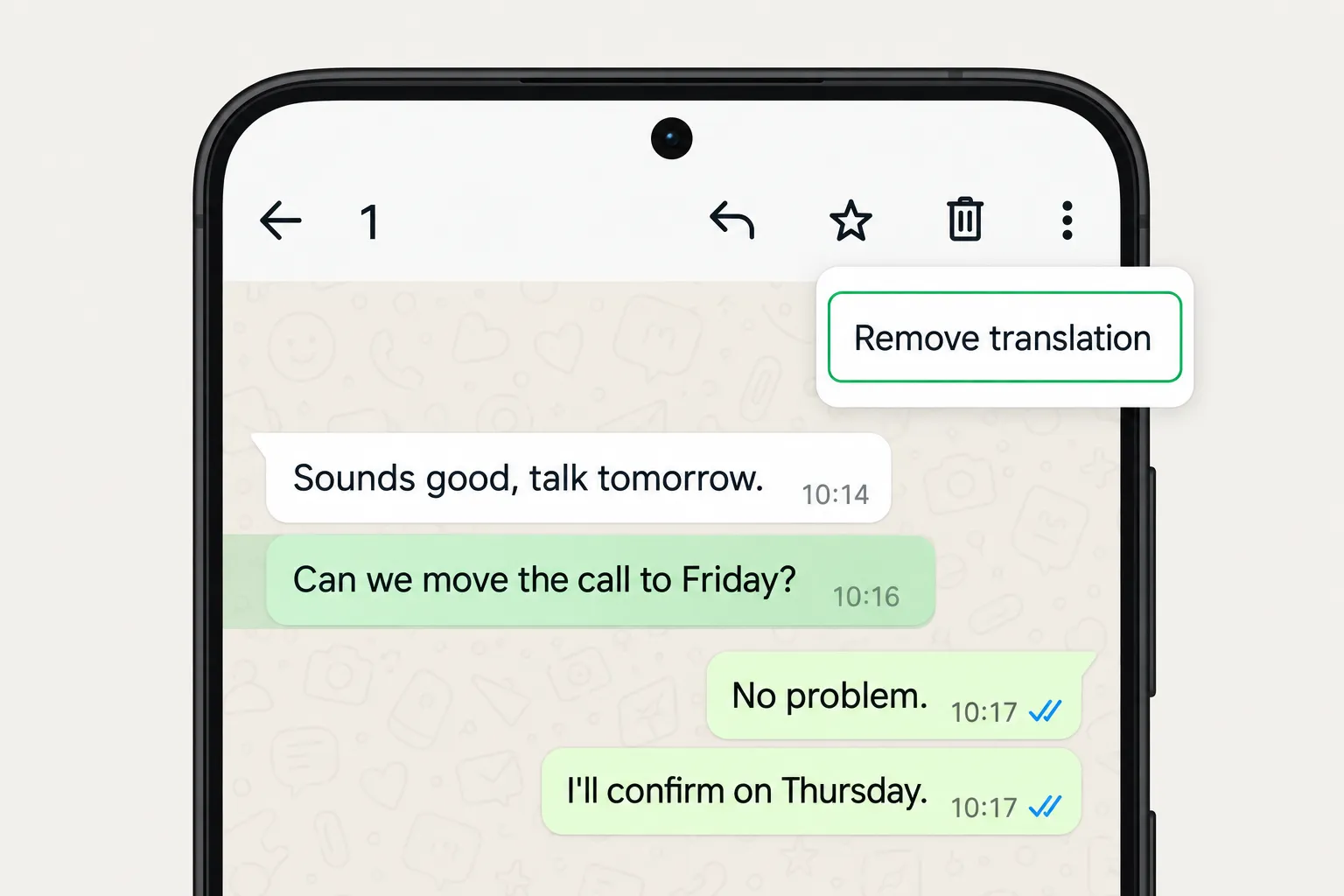
Remove the translation from a message
These are the steps from WhatsApp’s official help for Android.
- Tap and hold the translated message.
- Tap the three dots menu (⋮) at the top right.
- Tap Remove translation.
The message goes back to its original language. If you want to read it in your language again, repeat the steps and tap View translation.
Turn off auto translate for a chat
When you translate a message on Android, WhatsApp lets you choose to translate all new messages in that chat. If you turned that on, removing the translation from one message isn’t enough, because the next ones will keep arriving translated.
WhatsApp’s help explains how to turn it on but not how to turn it off. The switch is in the same place where you turned it on.
- Open the chat that keeps translating.
- Tap and hold a message, tap the three dots menu and open Translate.
- Switch off the option to translate all new messages in the chat.
If your version doesn’t show it there, tap the contact or group name to open the chat info screen and look for the translation option. It’s a per chat setting, so you need to turn it off in every chat where you switched it on. How to turn it on and which languages it supports is covered in our guide to WhatsApp auto translate.
If the translation keeps coming back
There are two usual reasons. The first is that you removed the translation from one message but automatic translation is still on in that chat. The second is that WhatsApp isn’t the one translating. If it happens in several chats at once or looks different from WhatsApp’s translation, check the Samsung, Pixel and Google Translate sections below.
How to turn off translation on WhatsApp for iPhone
On iPhone, WhatsApp only translates one message at a time. You tap and hold the message, then tap More… and Translate. As of November 2026 there’s no automatic chat translation on iPhone, so each translation only affects the message you picked and new messages arrive in their original language.
WhatsApp’s iPhone help doesn’t describe a button to remove a translation from a message. What it does mention is where the languages you download are kept, in Settings > Translate > Downloaded Languages. If what changes language on an iPhone is what you type, the keyboard is responsible, not WhatsApp (more on that below).
How to turn off WhatsApp translation on Samsung
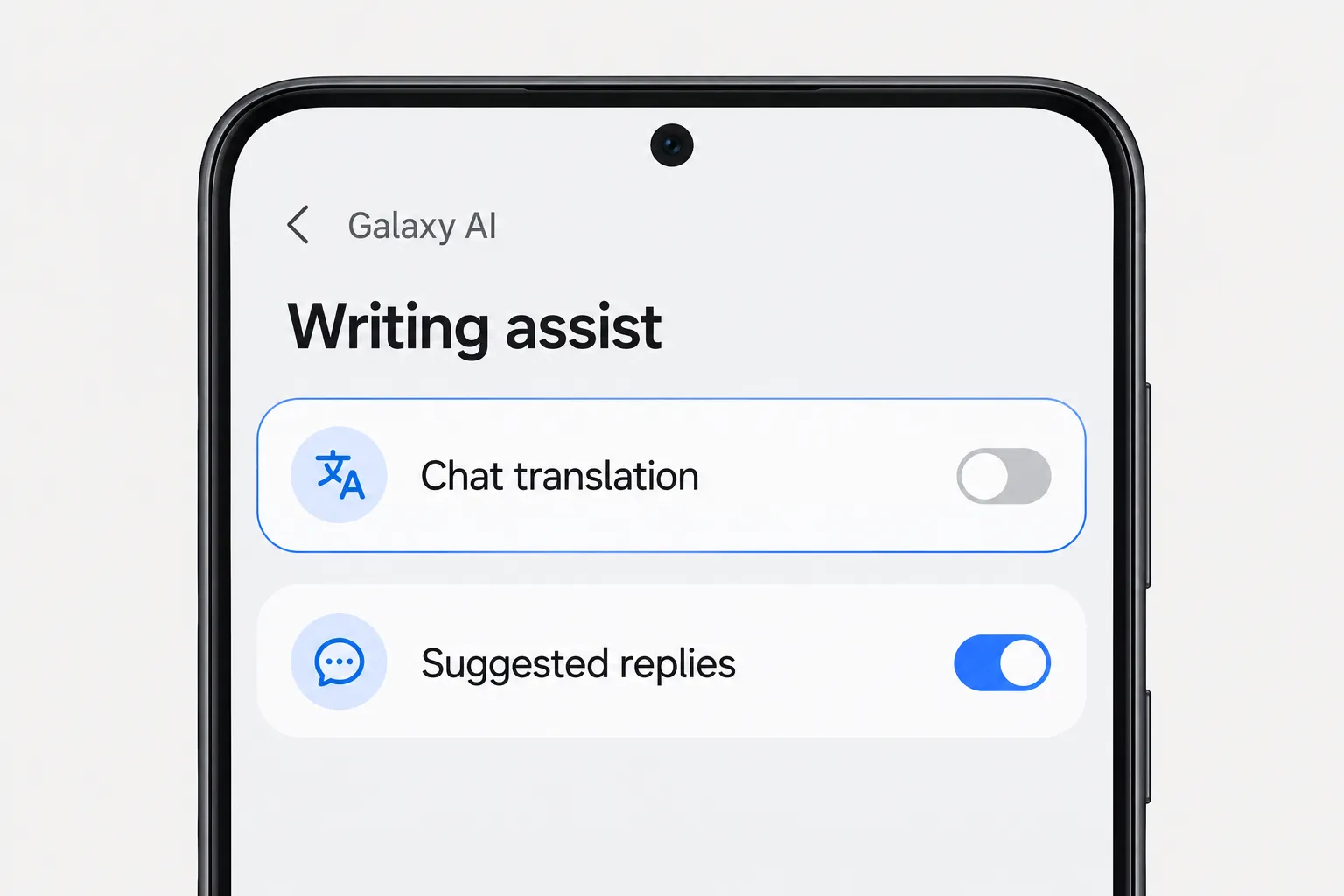
Galaxy phones with Galaxy AI have Chat translation, a phone feature that also works inside WhatsApp. You use it by tapping the Writing assist icon in a conversation, and the translation appears below the original text. Since it isn’t part of WhatsApp, you won’t find it in WhatsApp’s settings.
According to Samsung’s support page, on One UI 7 you manage it like this.
- Open your phone’s Settings.
- Tap Galaxy AI.
- Tap Writing assist.
- Tap Chat translation and turn the switch off.
The names change with the model and software version. On One UI 6.1.1 the menu is called Chat assist, and on older versions it’s under Settings > Advanced features > Advanced intelligence. If you can’t find it, type “Chat translation” in the Settings search bar. Keep in mind it’s a phone setting, so turning it off also stops it in other supported apps such as Messages or Instagram.
How to remove “Translate to English” on a Google Pixel
On the Pixel 6 and later, the system’s Live Translate can translate messages in some chat apps. You’ll notice it because a language chip or bubble appears in the conversation offering to translate into English (or your language). According to Google’s Pixel help, tapping the language bubble switches between the original and the translated text.
To make it stop, go to Settings > System > Live Translate and turn off Use Live Translate. On the Pixel 11 series you can turn off just the Text option and keep call translation. On older models the menu may live somewhere else, so the quickest way is to search for “Live Translate” in Settings.
How to remove the Google Translate bubble when you copy a message
If a floating Google Translate icon shows up every time you copy a WhatsApp message, that’s Tap to Translate, a feature of the Google Translate app on Android. You turn it off from the app, according to Google Translate Help.
- Open the Google Translate app.
- At the top right, tap the menu and go to Settings.
- Tap Tap to Translate and turn off Enable.
If you only want it off the screen for now, hold the bubble and drag it to the bottom of the screen. On the Pixel 6 and later, also check the Show floating icon option. There’s more on using Google Translate with WhatsApp in our guide to Google Translate for WhatsApp.
If your keyboard translates what you type
When your messages come out in another language, the culprit is usually Gboard, Google’s keyboard. Its Translate mode converts what you type before it reaches WhatsApp’s text box, and it stays open until you close it.
To leave it, tap Close features menu at the top of the keyboard, as Gboard Help explains. WhatsApp doesn’t translate what you send, so if your messages change language it’s almost certainly the keyboard.
How to turn off voice message transcripts (not a translation)
Some searches for “turn off the WhatsApp translator” are really about the text that shows up under voice messages. That’s voice message transcripts, which turn the audio into text in the same language it was spoken in. It doesn’t translate anything.
To turn it off, go to WhatsApp Settings > Chats and switch off Voice Message Transcripts. WhatsApp’s help notes that turning it off resets your transcript language. If you want the opposite, the steps are in how to convert a WhatsApp voice message to text.
How to turn off translation on WhatsApp Web and PC
WhatsApp Web and the desktop apps don’t have message translation, so there’s nothing to switch off inside WhatsApp there. If you see translated messages on your computer, they come from one of these two sources.
Chrome’s translator
If the whole page is translated, including menus and contact names, it’s Chrome’s page translation. Click the Translate icon on the right of the address bar and choose the original language. To stop Chrome from offering it, open Chrome’s settings, go to Languages and turn off Use Google Translate.
A translation extension
If translations appear under each message or there’s a Translate button in the chat, it’s an extension. Each one has its own settings, and any of them can be switched off from the browser’s extensions page (chrome://extensions in Chrome).
If it’s TapScriber, our WhatsApp Web translator, it doesn’t translate anything until you click Translate under a message. Without clicking anything you only see its buttons, under messages in another language and above the text box. To remove a translation you opened, click “Hide translation”. To keep TapScriber out of one particular conversation, do this.
- Open the chat on WhatsApp Web.
- Click TapScriber’s language button in the chat header.
- Choose “Turn off TapScriber in this chat”.
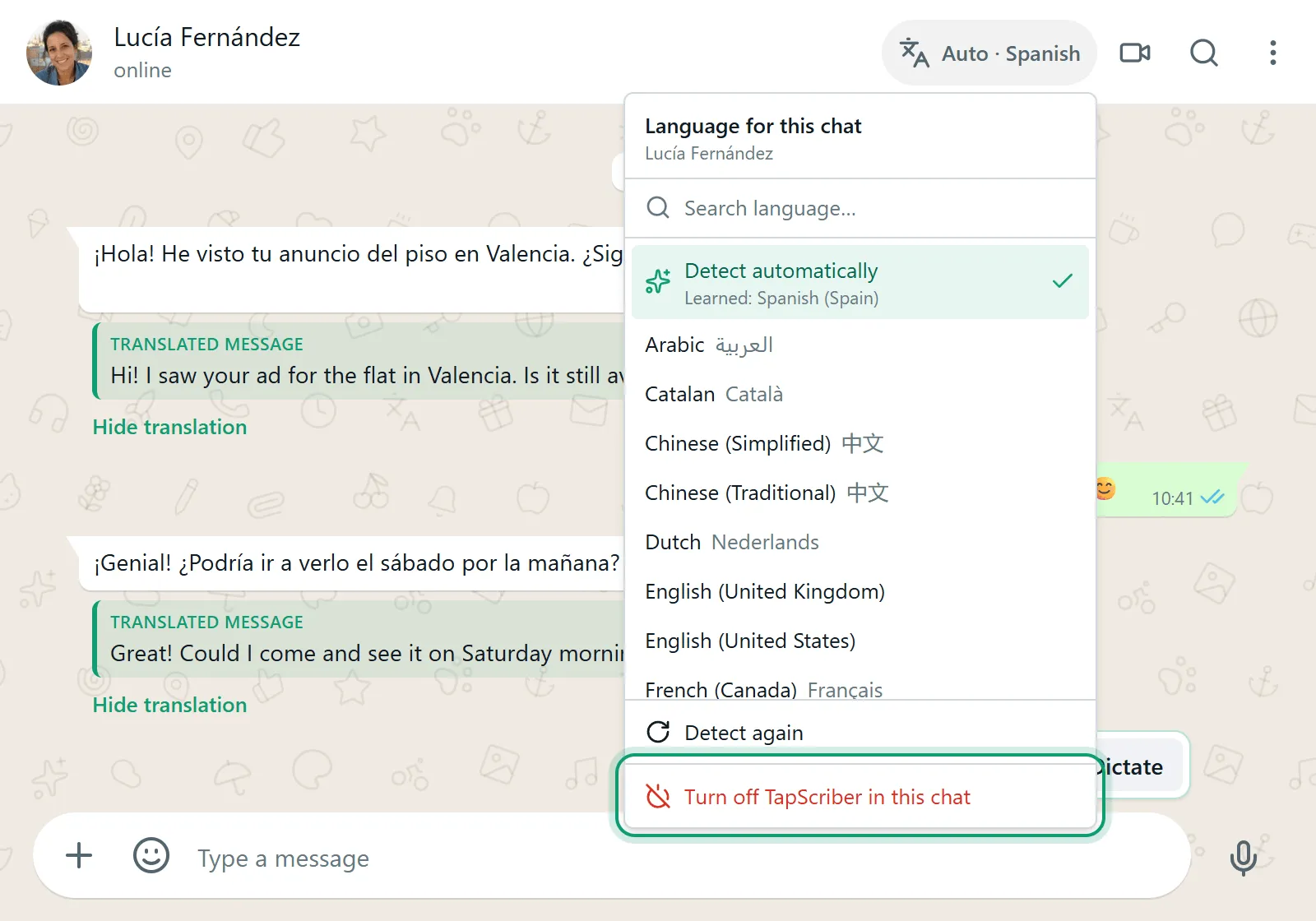
In that chat, TapScriber’s buttons and the reply bar disappear, and the header button changes to “Off”. To bring it back, open the same menu and choose “Turn on TapScriber in this chat”. Your other chats stay as they were.
If what bothers you is that your replies go out translated when you press Enter, you have Automatic mode turned on. Switch it off from the extension icon in Chrome’s toolbar, and you’ll see each translation again before you click “Send translation”. Every button and option is explained in how to translate WhatsApp Web messages.
Frequently asked questions
How do I turn off auto translate in WhatsApp on Android?
WhatsApp's automatic translation is set per chat. Open the chat, open the translation options of a message and switch off the option to translate all new messages. If your version doesn't show it there, look for it in the chat info screen.
How do I remove the translation from a WhatsApp message?
Tap and hold the translated message, tap the three dots menu and tap Remove translation. It only changes what you see on your phone, and you can bring it back with View translation.
Why is WhatsApp translating my messages when I never turned it on?
Usually it isn't WhatsApp. Samsung's Galaxy AI chat translation, Pixel Live Translate, Google Translate's Tap to Translate bubble and Gboard's Translate mode all work on top of WhatsApp and are turned off in their own settings. WhatsApp's translation isn't even available in the WhatsApp Business app.
How do I stop WhatsApp from translating the messages I send?
WhatsApp doesn't translate what you send, so it's your keyboard. If Gboard's Translate mode is open, tap Close features menu at the top of the keyboard. On WhatsApp Web, check whether a translation extension has an automatic sending mode turned on.
How do I turn off translation on WhatsApp Web?
WhatsApp Web has no message translation, so the translation comes from an extension or from Chrome. With TapScriber, open the language button in the chat header and choose Turn off TapScriber in this chat.


