How to Translate a WhatsApp Voice Message on Phone and PC
By TapScriber Team
Updated 7 min read
Published

You can’t translate a WhatsApp voice message directly in the app, because WhatsApp only transcribes it into text in the original language. On your phone, the way to do it is to turn on voice message transcripts and paste that text into a translator. On a computer, the TapScriber extension adds a “Transcribe & translate” button to WhatsApp Web that shows the voice message already translated under the bubble.
Below you’ll find both methods step by step, which languages each one supports and what still isn’t possible.
Can you translate a voice message on WhatsApp?
Yes, but WhatsApp only does half of the job. According to its Help Center, voice message transcripts turn the audio into text on your own device, and not even WhatsApp can read that text. The help page says nothing about translating it, so the transcript comes out in whatever language the other person spoke.
If people write to you in another language, WhatsApp’s message translation does translate text on your phone, but a voice message isn’t a text message. That’s why you need one more step, and which one depends on where you use WhatsApp.
| Where you use WhatsApp | What you can do with a voice message in another language |
|---|---|
| Android app | Transcribe it in English, Spanish, Portuguese or Russian and translate the text in another app |
| iPhone app | Transcribe it in up to 20 languages (depending on your iOS version) and translate the text in another app |
| WhatsApp Web | Transcribe and translate it inside the chat with TapScriber |
| Desktop app (Windows or Mac) | Nothing inside WhatsApp, since there are no transcripts and it doesn’t support extensions |
How to translate a WhatsApp voice message on your phone
On a phone you need two tools. First WhatsApp transcribes the voice message, and then a translator turns that text into your language.
Turn on voice message transcripts
The feature is off by default. This is how WhatsApp’s help page says to turn it on.
- Open WhatsApp Settings (on iPhone you can also tap your profile picture).
- Tap Chats.
- Turn on Voice Message Transcripts.
- Tap Choose language and pick the language most of your voice messages are in.
- On Android, tap Set up now or Wait for Wi-Fi to download the language. On iPhone, tap Change to and the language you chose.
Step 4 matters. If the voice message is in Spanish, the transcript language has to be Spanish, even if you want to read it in English. You can change it at any time in Settings, Chats, Transcript language.
Transcribe the voice message and translate the text
Once it’s on, tap and hold the voice message and tap Transcribe (on Android it’s inside the options menu at the top). The text shows up under the voice message after a few seconds, and you can tap it to see all of it.
That text is in the original language. To translate it, copy it if your phone lets you select it and paste it into a translator, or take a screenshot and open it with the Google Translate camera. On Android, Tap to Translate saves you from switching apps when you copy text, as we explain in our guide to Google Translate for WhatsApp.
Languages WhatsApp can transcribe
The languages depend on your phone. This is the list from WhatsApp’s Help Center as of November 2026.
| Device | Transcript languages |
|---|---|
| Android | English, Portuguese, Spanish and Russian |
| iPhone on iOS 16 | English, Arabic, Chinese, French, German, Italian, Japanese, Korean, Portuguese, Russian, Spanish and Turkish |
| iPhone on iOS 17 or newer | The iOS 16 languages plus Danish, Dutch, Finnish, Hebrew, Malay, Norwegian, Swedish and Thai |
On iPhone, Siri also has to be turned on to see transcripts. If the voice message is in a language that isn’t in the table, WhatsApp can’t transcribe it and this method won’t work. The help page itself warns that transcripts may be inaccurate, so an odd sentence may come from the transcript and not from the translator.
How to translate a WhatsApp voice message on PC with TapScriber
WhatsApp Web doesn’t have voice message transcripts. The Help Center says they’re only available on certain devices, and for the desktop app it says the feature isn’t available. With TapScriber, a free extension for Chrome, Edge and Brave, every voice message you receive on WhatsApp Web gets a button to transcribe and translate it without leaving the chat.
1. Install TapScriber from the Chrome Web Store
Open the TapScriber listing on the Chrome Web Store and click “Add to Chrome”. It works the same way in Edge and Brave. You don’t need an account to try it.
2. Open the chat on WhatsApp Web
Go to web.whatsapp.com and open the conversation with the voice message. If WhatsApp Web was already open, there’s no need to reload it, because TapScriber also starts in tabs that were already open when you installed it. You only need to reload the tab after the extension updates. Voice messages are translated into “My language”, which TapScriber takes from your browser and you can change from the extension icon.
3. Tap Transcribe & translate under the voice message
Under every voice message you receive there’s a “Transcribe & translate” link. If the chat is already in your language, the link says “Transcribe”, because you only need to read it (more on that in our guide to converting a WhatsApp voice message to text).
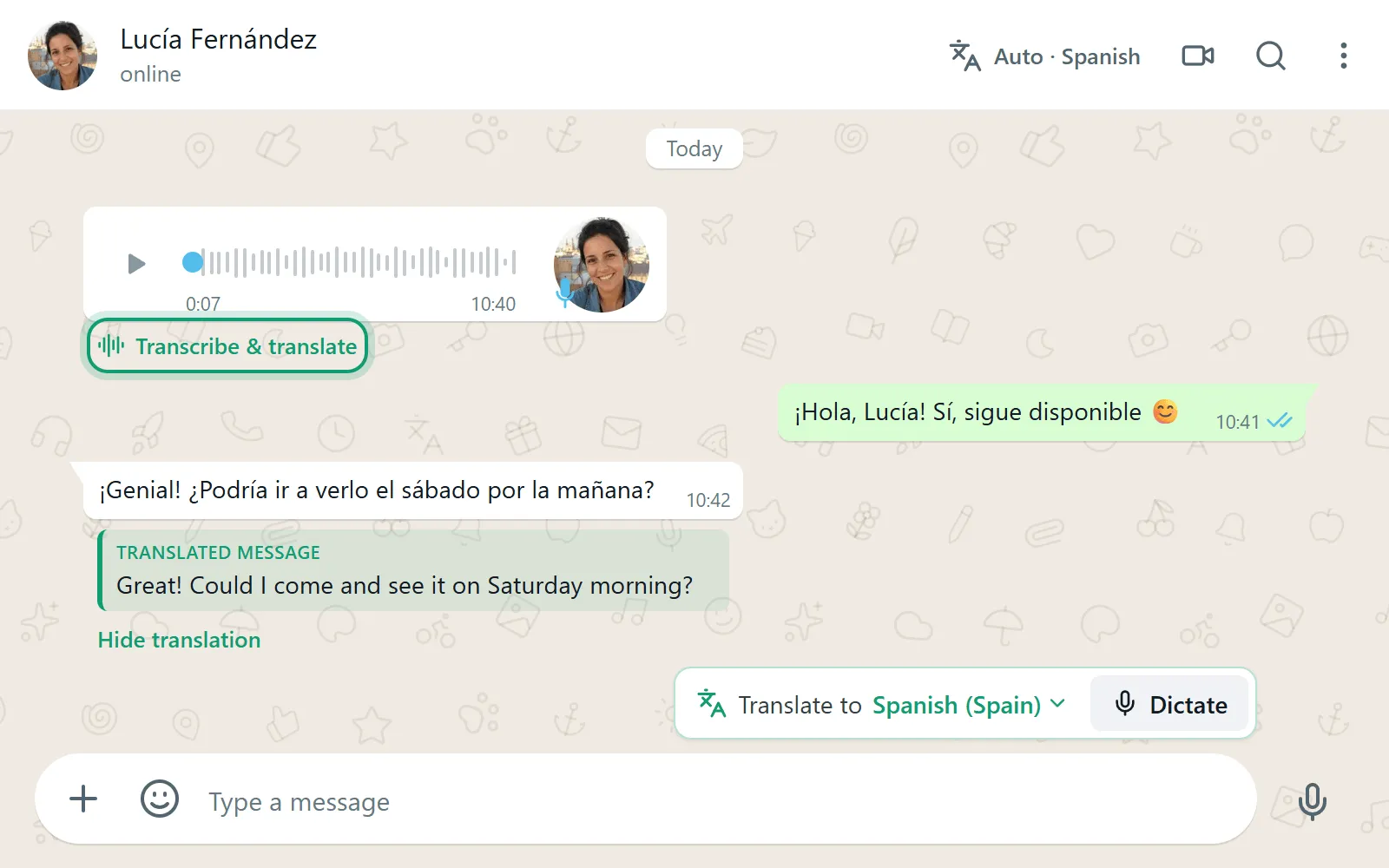
You don’t have to press play. If WhatsApp hasn’t downloaded the audio yet, TapScriber presses its play button muted and stops it right away. While it does that, it tells you WhatsApp will mark the voice message as played. If that doesn’t work, it asks you to play it yourself and transcribes it as soon as it starts.
4. Read the translation and the original transcript
A few seconds later a box labeled “Translated voice message” appears. At the top is what the voice message says in your language and below it, labeled “Original” with the detected language, the transcript as it was spoken. That way you can check a name or a number without listening again.
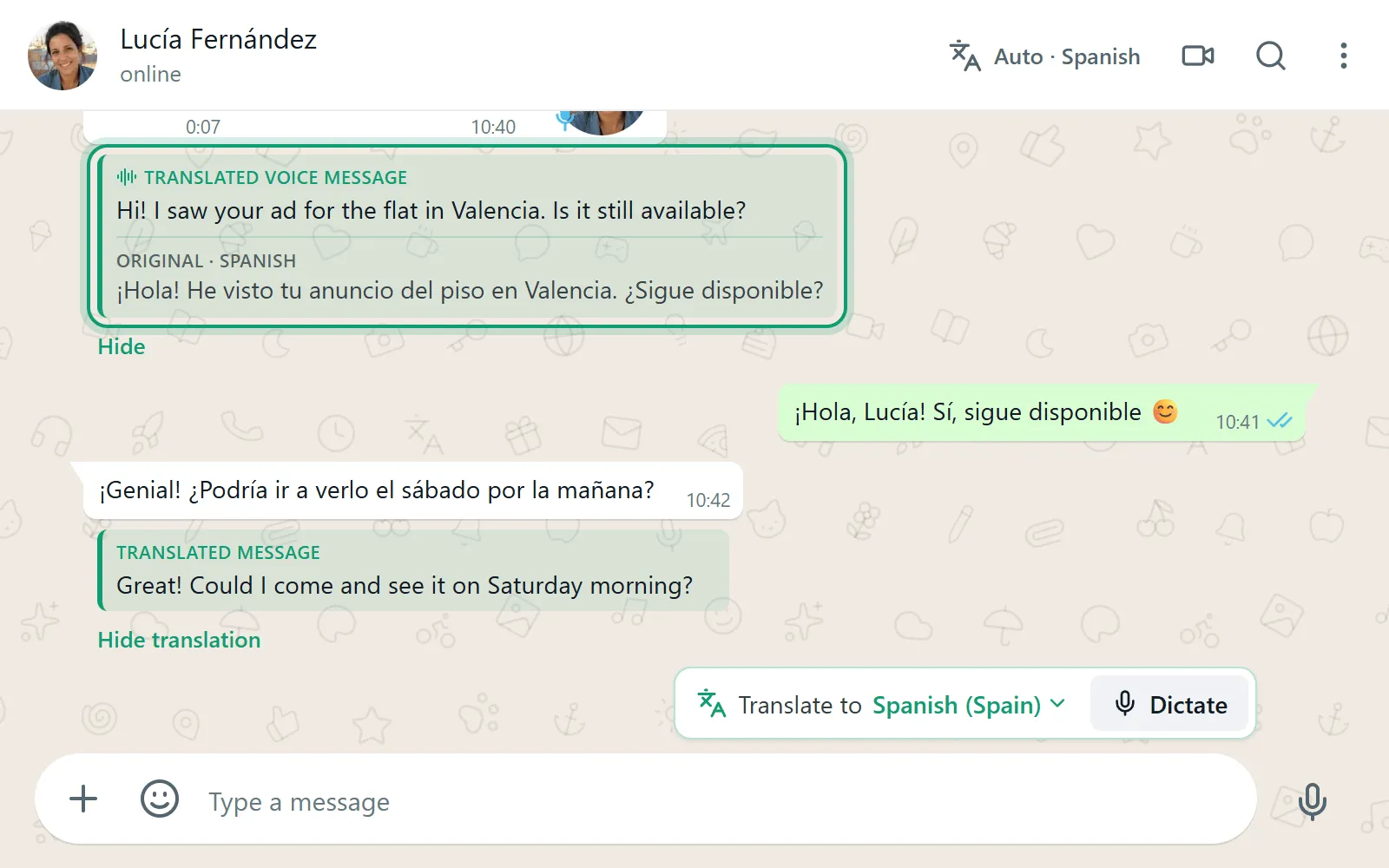
“Hide” collapses the box and “Show transcript” opens it again. The language of the voice message is detected automatically, and the translation can go into any of TapScriber’s 25 languages and regional variants. Text messages work the same way with the Translate button, as shown in our guide to translating WhatsApp Web messages.
How many voice messages you can translate with TapScriber
Voice messages have their own quota in minutes, separate from text translations. We count the seconds of each voice message, even if it was already in your language, and a transcription that fails doesn’t count.
| Plan | Voice minutes | Longest voice message |
|---|---|---|
| No account | 5 minutes to try it | 3 minutes |
| Free account | 30 minutes a month | 3 minutes |
| Pro | 5 hours a month | 10 minutes |
You can create the free account with Google or an email code, with no card and no password, and its minutes renew on the 1st of every month. If a voice message is longer than your plan allows, TapScriber tells you and doesn’t charge anything.
What you can’t do
- Translate voice messages inside the WhatsApp phone app. WhatsApp doesn’t do it, and TapScriber doesn’t run there because phone apps don’t support extensions.
- Use TapScriber in the WhatsApp desktop app for Windows or Mac. You need to open WhatsApp Web in your browser.
- Translate the voice messages you send. The button only shows up on voice messages you receive. To reply, you can tap Dictate, speak in your language and review the translated text before you send it.
- Listen to the translation. Both WhatsApp and TapScriber give you text, not a translated voice.
- Transcribe a language your phone doesn’t support in WhatsApp. Outside the list above, the phone method doesn’t work.
Other ways to translate WhatsApp voice messages
Some websites and apps transcribe and translate an audio file if you upload it. They work with almost any phone, but you have to get the voice message out of WhatsApp (forward it, share it or save it) and hand it to an outside service. Before doing that with personal or work voice messages, check what that service does with your files and whether it keeps them.
With WhatsApp’s transcripts the audio never leaves your phone. With TapScriber, only the voice message you choose goes through our server to be transcribed and translated, and neither the audio nor the text is stored. The details are in our privacy policy.
Which method suits you
If you use WhatsApp on your phone and the voice message is in a language your phone can transcribe, WhatsApp’s transcripts plus a translator are free and fine for the odd voice message. If you chat from a computer or get voice messages in another language often, TapScriber’s WhatsApp Web translator saves you the copying and pasting and keeps the translation next to the voice message, with the original underneath.
Frequently asked questions
Can WhatsApp translate voice messages?
No. WhatsApp can transcribe voice messages into text on your phone, but the transcript stays in the language that was spoken. To read it in your language you need a translator app, or an extension like TapScriber on WhatsApp Web.
How do I turn on voice message transcripts?
In the phone app, go to Settings, tap Chats and turn on Voice Message Transcripts. Choose the language most of your voice messages are in. Then tap and hold a voice message and tap Transcribe.
Can I translate a WhatsApp voice message on iPhone?
Yes, in two steps. iPhone transcribes the voice message on iOS 16 or newer with Siri turned on, and then you copy or screenshot the text and translate it in another app. WhatsApp won't translate it for you.
Will the sender know I transcribed or translated their voice message?
The sender can't see your transcripts. They may see that you played it, depending on your read receipts settings. With TapScriber, if the voice message hadn't loaded yet, WhatsApp marks it as played.
Is there a free way to translate WhatsApp voice messages?
Yes. WhatsApp's transcripts plus a translator such as Google Translate cost nothing. On WhatsApp Web, TapScriber lets you try 5 minutes of voice messages without an account and 30 minutes a month with a free account.


