WhatsApp Web vs WhatsApp Desktop, Which One Should You Use?
By TapScriber Team
Published 6 min read

WhatsApp Web runs in your browser with nothing to install, and WhatsApp Desktop is the app you install on Windows or Mac. As of November 2026 both handle chats, voice and video calls, and keep working when your phone is off, so the differences are in the details. Pick the app if you want WhatsApp in its own window with notifications even when your browser is closed. Pick WhatsApp Web on a computer that isn’t yours, on Linux, or when you want extensions such as a translator.
WhatsApp Web vs desktop app at a glance
Both are linked devices on the same account. They show the same chats, use end-to-end encryption and need your phone to link the first time. Here’s what differs.
| WhatsApp Web | WhatsApp Desktop (Windows and Mac) | |
|---|---|---|
| Install | None, just open web.whatsapp.com | Microsoft Store, App Store or the WhatsApp website |
| Runs on | Windows, Mac and Linux, in an up-to-date browser | Windows 10 64-bit (version 1903 or later) and macOS 11 or later |
| Voice and video calls | Yes, one-on-one and group, since July 2026 | Yes, groups of up to 32 people |
| Screen sharing | Yes | Yes |
| New message notifications | From the browser, while the tab is open | From the app itself, no browser needed |
| Works with your phone off | Yes | Yes |
| Device limit | Counts as one of 4 linked devices | Counts as one of 4 linked devices |
| Two accounts at once | With two browser profiles | No |
| Extensions | Yes, in Chrome, Edge, Brave and others | No |
| Message translation | Not built in, yes with an extension | No |
| Voice message transcripts | Not built in, yes with an extension | No |
Everything else, like Status, Channels, Communities and file sharing, is in both. The translation and transcript rows refer to WhatsApp’s own features, which its Help Center still lists as unavailable on Web, Windows and Mac.
How to use WhatsApp Web
WhatsApp Web is WhatsApp in a browser tab on your computer. There’s nothing to download, so it works the same on your own laptop as on a work or library computer.
- Open web.whatsapp.com in your browser.
- On your phone, open WhatsApp and go to Linked devices (in the menu on Android, in Settings on iPhone).
- Tap Link a device and scan the QR code on your computer screen.
According to WhatsApp’s Help Center, it runs on Windows, Mac and Linux with Chrome 100, Edge 100, Firefox 115, Safari 15, Opera 86 or newer. Old browsers like Internet Explorer won’t work. On a shared computer, log out from the WhatsApp Web menu or from Linked devices on your phone when you’re done.
How to install the WhatsApp desktop app
WhatsApp Desktop is the official computer app. It opens in its own window, sits in your taskbar or Dock, and shows new message notifications without a browser open.
- On Windows, install it from the Microsoft Store. It needs Windows 10 64-bit, version 1903 or later.
- On Mac, get it from the App Store or the WhatsApp download page. It needs macOS 11 or later.
The first time you open it you get a QR code, and you link it from Linked devices on your phone, just like WhatsApp Web.
There’s a twist on Windows. Since late 2025 the Windows app loads WhatsApp Web inside its own window using WebView2, the Microsoft Edge engine, and Windows Latest found it uses far more memory than the old app. Even though it’s a web page under the hood, it isn’t a full browser and doesn’t take extensions.
Can you make calls on WhatsApp Web?
Yes. Since July 28, 2026 you can make and receive one-on-one and group voice and video calls in WhatsApp Web without installing the app. WhatsApp announced it on its official blog together with screen sharing and moving a group call from your phone to your computer without hanging up. Calls stay end-to-end encrypted with no time limit.
It rolled out gradually. If you don’t see the call buttons in the chat header, update your browser, reload the page and allow microphone and camera access when asked. The desktop app has had calls for years, and WhatsApp lists groups of up to 32 people there. It hasn’t published a limit for the web.
WhatsApp Web or desktop, which should you use?
WhatsApp Web makes more sense if
- you’re on a work, school or shared computer where you can’t or don’t want to install software,
- you use Linux, or a Windows or Mac version older than the app supports,
- you want extensions for translation, privacy or customer management,
- you need two accounts on one computer (one browser profile per account does it, nothing to install).
The desktop app makes more sense if
- you want WhatsApp always open in its own window, away from your browser tabs,
- you want message and call notifications even with the browser closed,
- you make large group calls, where WhatsApp lists a 32 person limit for the app.
You don’t have to choose once and for all. Each one counts as a linked device and you can have up to four, so you can keep the app for daily use and open WhatsApp Web when you need something that only works in a browser.
Translating WhatsApp on a computer only works in WhatsApp Web
If you chat in another language, this matters more than anything above. WhatsApp’s own translation only exists in the Android and iPhone apps, and the desktop app doesn’t support extensions. The only way to get a translate button inside your chats on a computer is WhatsApp Web in a Chromium browser such as Chrome, Edge or Brave, with an extension.
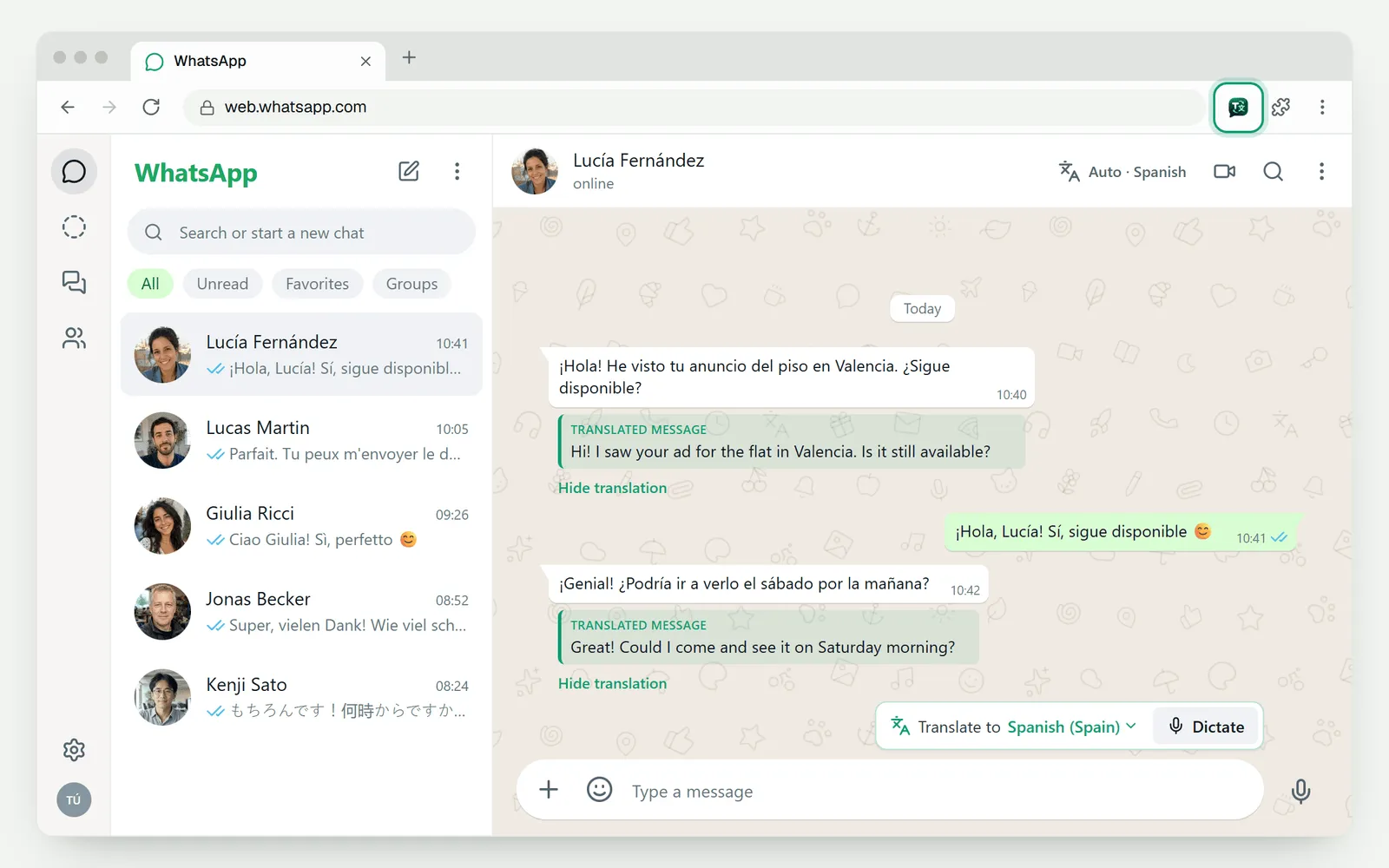
With TapScriber’s WhatsApp Web translator, a Translate button appears under every message in another language and the translation shows under the original. When you type, a bar translates your reply into the chat’s language and shows a preview before you send it. On voice messages, Transcribe and translate turns the audio into text in your language, as we explain in how to translate a WhatsApp voice message. If the audio is already in your language, it just turns it into text, as in our guide to converting a WhatsApp voice message to text. It doesn’t translate calls and doesn’t work in the phone or desktop apps. Your first 30 translations need no account, and it works with WhatsApp Business accounts on WhatsApp Web too.
Get it from the Chrome Web Store and follow the steps in how to translate WhatsApp Web messages. For other add-ons, see the best WhatsApp Web extensions. If you like the desktop app for everything else, keep it open alongside WhatsApp Web and use the browser only for chats in other languages.
WhatsApp Web not working? What to check
These are the most common causes from WhatsApp’s help on connection issues, in the order worth checking.
- Your connection. A yellow banner saying your computer isn’t connected means an internet problem. Office and campus Wi‑Fi sometimes blocks WhatsApp, so try another network or your phone’s hotspot.
- The page. Reload it. If that doesn’t help, clear your browser’s cache and cookies, or log out and link again with the QR code.
- Your browser. WhatsApp Web doesn’t work in old browsers. Update to the latest Chrome, Edge, Firefox, Safari or Opera.
- Your phone. If 14 days go by without opening WhatsApp on your primary phone, linked devices disconnect. Open it and link your computer again if needed.
- An extension. If the trouble started right after you installed one, turn it off on your browser’s extensions page and reload WhatsApp Web to check.
If none of that works, WhatsApp also suggests restarting your computer (off for about 30 seconds, then back on). In the meantime you can keep chatting from the desktop app or your phone.
Frequently asked questions
Is WhatsApp Web the same as WhatsApp Desktop?
Not quite. WhatsApp Web runs in your browser with nothing to install, while WhatsApp Desktop is an app you install on Windows or Mac. Both link to your account with a QR code and show the same chats, but only WhatsApp Web supports browser extensions.
Can you make video calls on WhatsApp Web?
Yes. Since late July 2026 WhatsApp Web supports one-on-one and group voice and video calls, with screen sharing, without installing the app. It rolled out gradually, so if you don't see the call buttons, update your browser and reload the page.
Can I use WhatsApp on my computer without my phone?
Partly. You need your phone to link the computer, but after that WhatsApp Web and the desktop app keep working with your phone switched off. You do have to open WhatsApp on your phone at least once every 14 days to stay connected.
Can WhatsApp Desktop translate messages?
No. The desktop app has no translator and doesn't support extensions. To translate on a computer, open WhatsApp Web in Chrome, Edge or Brave with an extension like TapScriber. You can keep using the app for everything else.


