How to Use Google Translate with WhatsApp (Android, iPhone, PC)
By TapScriber Team
Published 7 min read

Google Translate isn’t built into WhatsApp, so using it means moving text between two apps. On Android the smoothest option is Tap to Translate, which translates anything you copy without leaving the chat. On iPhone and on a computer you copy and paste, or use the Gboard keyboard to write replies that are already translated. If you chat from WhatsApp Web, an extension can cut out the back and forth entirely.
For each method you’ll see the steps, how much work it takes in a real conversation and when it’s worth it.
Does WhatsApp have Google Translate built in?
No. There’s no Google Translate button in WhatsApp and no way to link the two. What WhatsApp does have, since September 2025, is its own message translation in the Android and iPhone apps. Language support on Android is limited, and as of October 2026 it isn’t available on WhatsApp Web. We cover it in detail in Does WhatsApp have a translator?, and if you want to compare Google Translate with Samsung Keyboard or iOS Translate, every method is in how to translate WhatsApp messages.
People who search for Google Translate on WhatsApp usually want one of three things.
- Understand a message that arrived in another language.
- Reply in the other person’s language.
- Do either of those on a computer, where WhatsApp’s own translation doesn’t exist.
Google Translate can handle all three. The number of steps depends on your device.
Google Translate in WhatsApp on Android
Tap to Translate
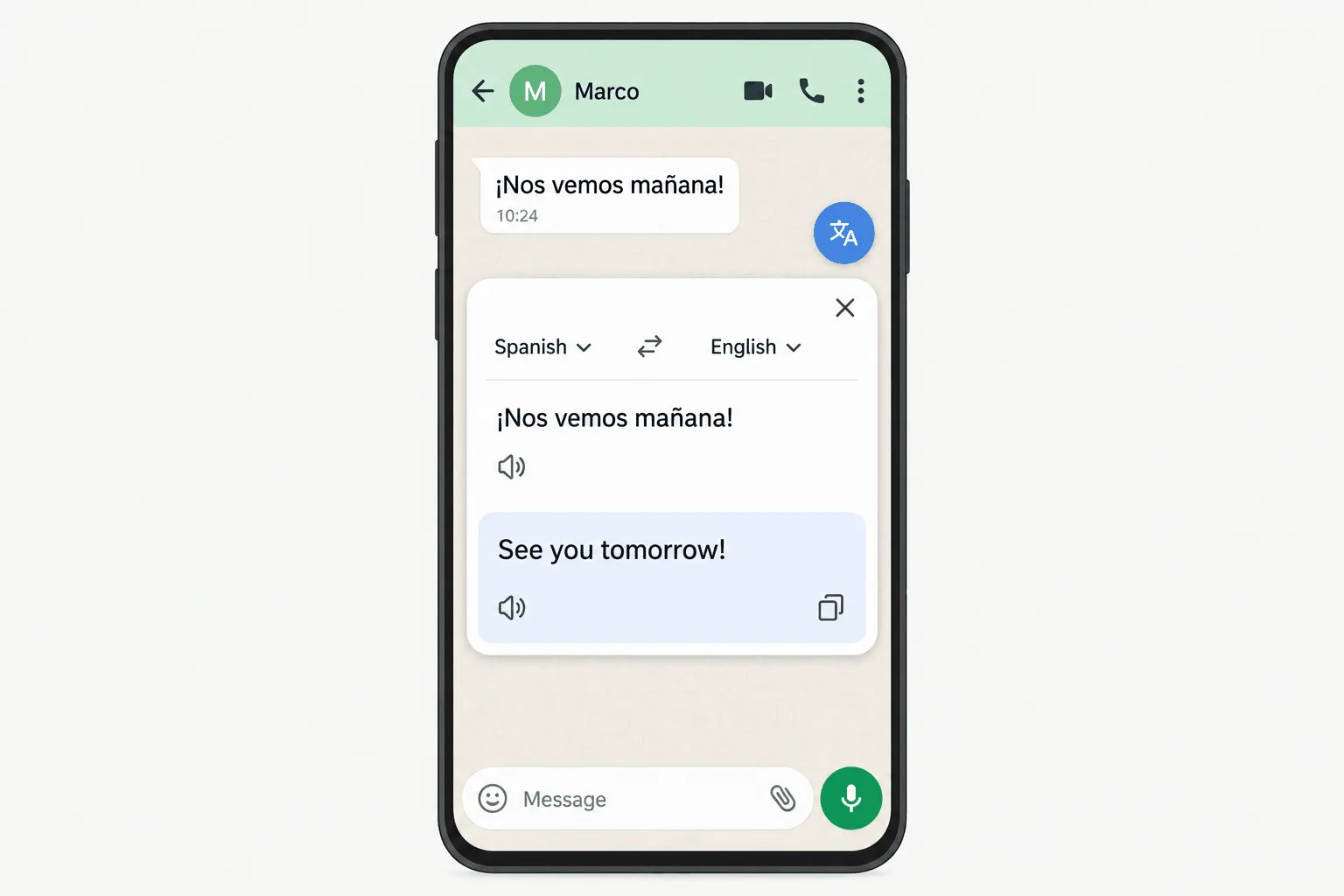
This is a Google Translate app feature that runs on top of other apps. When you copy text, a Google Translate icon shows up, and tapping it gives you the translation without leaving WhatsApp.
- Install or update Google Translate from Google Play.
- Open the app, tap the menu or your profile picture at the top right and go to Settings.
- Tap Tap to Translate and turn it on.
- If Android asks about “Display over other apps”, tap Allow. The bubble won’t appear without that permission.
- In WhatsApp, long-press the message and tap Copy.
- Tap the Google Translate icon on screen and pick a language if needed.
On Pixel 6 and newer phones you can also turn on a floating icon for quicker translations. If the bubble gets in the way, hold it and drag it to the bottom of the screen.
Gboard for your replies
Tap to Translate is for reading. For writing back, Gboard (Google’s keyboard) has Translate built in.
- Install Gboard and set it as your keyboard.
- Open the WhatsApp chat and tap the message box.
- Open the features menu at the top of the keyboard and tap Translate.
- Pick the language you’re translating from (yours) and into (theirs).
- Type your message. Gboard shows a preview of the translation as you type.
- Tap Select to use the translation, check it in the WhatsApp box and send.
Keep in mind that Gboard sends what you type to Google’s servers to translate it, so think twice before using it for anything sensitive.
Photos and screenshots
If someone sends you a photo of a document or a sign, save it, open Google Translate, tap the camera icon and choose the image from your gallery. The app overlays the translation on the text it recognizes. Small or stylized lettering may not come out right.
Google Translate on WhatsApp on iPhone
Tap to Translate doesn’t exist on iPhone, so copy and paste is the basic method.
- In WhatsApp, long-press the message and tap Copy.
- Open the Google Translate app.
- Tap the text box and paste. The translation shows up right away.
Google also documents a shortcut. With the text already copied, press and hold the Google Translate icon on your Home Screen and choose the paste and translate option. It depends on your iPhone model and app version, so if you don’t see it, stick with the regular method.
Gboard works on iPhone too, with the same steps as on Android. Install it from the App Store, add it as a keyboard, open the features menu, tap Translate and type in your language. Tap Select and the translation lands in the WhatsApp message box.
Google Translate with WhatsApp on a computer
On a computer (WhatsApp Web or the desktop app) there’s no bubble and no translating keyboard. You have three options.
Copy and paste into translate.google.com
This works with both WhatsApp Web and the desktop app.
- Open translate.google.com in another tab or window.
- Copy the WhatsApp message and paste it into the left box.
- To reply, type your text in your language, swap the language direction and copy the result.
- Go back to WhatsApp, paste and send.
Translate a selection in Chrome
If you use WhatsApp Web in Chrome, you can read messages without the extra tab.
- Highlight the message text with your mouse.
- Right-click the selection.
- Choose “Translate selection to English” (or whatever your language is).
Replying still means copy and paste. The same goes for the official Google Translate extension, which translates text you select but can’t write into the chat for you.
Translate the whole page
Chrome can also translate the entire page with a right-click and “Translate to English”. On WhatsApp Web the results are hit or miss. The interface is already in your language, so Chrome may not offer to translate or may skip messages, and it translates your own messages and the menus along with everything else. It can help you skim a long chat, but it won’t help you reply.
The real cost of copy and paste
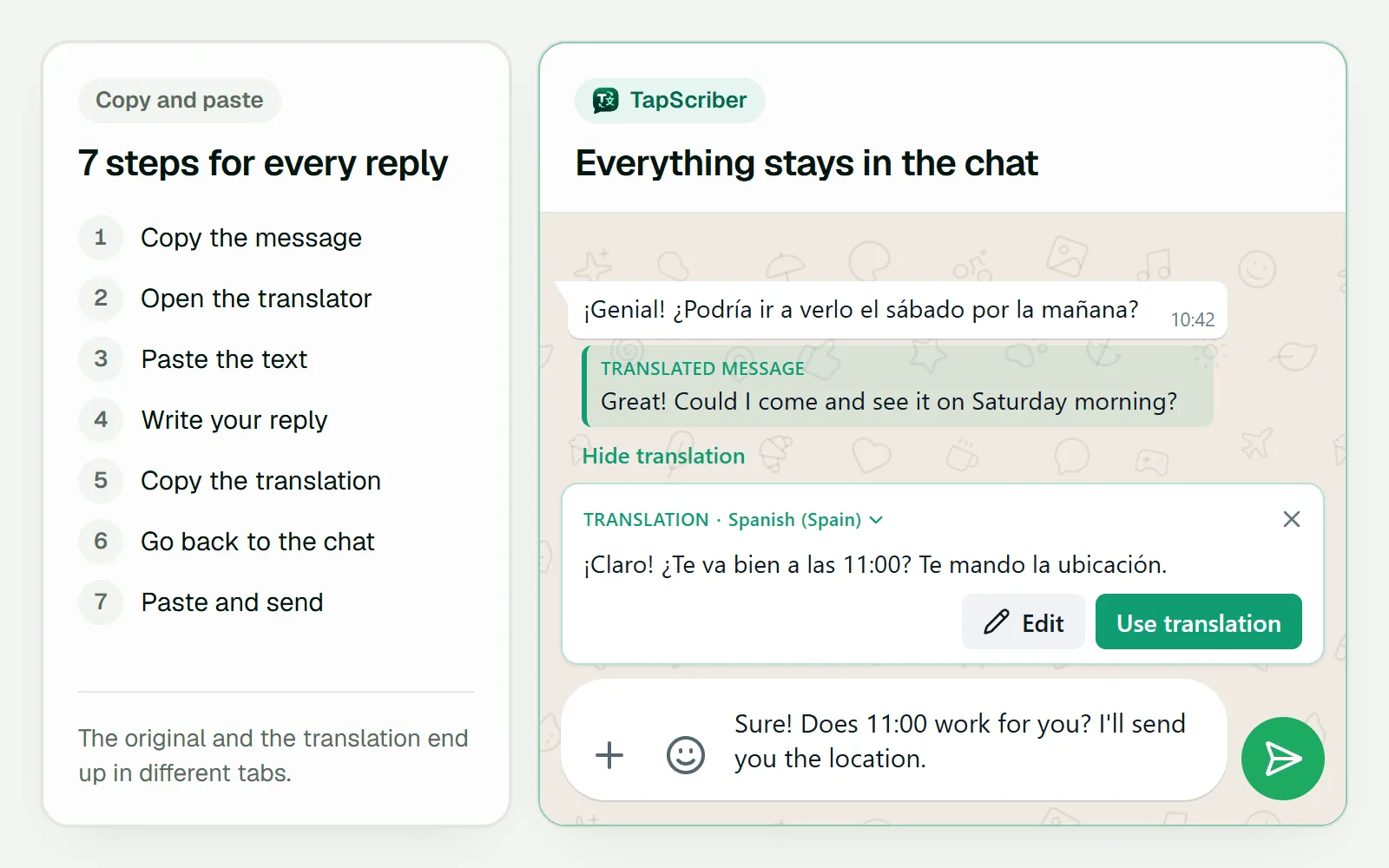
Copy and paste works, but each exchange takes more steps than you’d think. Say someone writes to you in Spanish and you want to answer (a common case, with its own tips in how to translate WhatsApp from Spanish to English). Here’s the full routine.
- Copy the message.
- Open the translator in another tab or app.
- Paste the text.
- Write your reply.
- Copy the translation.
- Go back to the chat.
- Paste and send.
That’s seven steps for every message you answer. For one chat a day it’s fine. If you deal with customers or sit in a group that talks in another language, it adds up fast. You also lose context, since the translation lives in another window and the original stays in the chat, and you can’t see them side by side later.
One more thing worth knowing. When you use Google Translate, the text goes to Google’s servers. For most messages that’s no big deal, but it’s worth a thought when personal or customer data is involved.
Every method side by side
| Method | Where it works | Incoming messages | Your replies | Leaves WhatsApp? |
|---|---|---|---|---|
| Tap to Translate | Android | Yes, after copying | No | No, a bubble appears |
| Gboard | Android and iPhone | Only if pasted into the keyboard | Yes | No |
| Google Translate app | Android and iPhone | Yes | Yes | Yes |
| translate.google.com | Computer | Yes | Yes | Yes, another tab |
| Chrome selection translate | WhatsApp Web | Yes | No | No |
| WhatsApp’s own translation | Android and iPhone | Yes | No | No |
| TapScriber extension | WhatsApp Web | Yes | Yes | No |
When Google Translate is the right tool
Google Translate is free and covers more languages than most tools. It’s a good fit when
- you chat on your phone and only now and then get a message in another language,
- you need to translate a photo, screenshot or document someone sent you,
- you speak a less common language that other tools don’t support,
- you want to translate one long piece of text rather than keep up a conversation.
If you have ongoing conversations from your computer, copy and paste turns into the bottleneck.
How to translate WhatsApp Web without copy and paste
That back and forth is exactly what TapScriber removes. It’s an extension that translates WhatsApp Web without copy and paste, for Chrome, Edge and Brave, and everything happens in the chat tab. Here’s how it works.
- Click Translate under a message you receive and the translation appears right below the original, which stays in view.
- Type your reply in your own language and click Translate. TapScriber shows you the translation in the chat’s language so you can review or edit it, and “Use translation” puts it in the message box.
- You decide when to send it. TapScriber never sends anything for you.
Each chat remembers its language, so you can talk in Spanish with one person and French with another without touching any settings. Only what you choose gets translated, and messages aren’t stored.
Trying it takes no account (30 translations), a free account gives you 300 a month and the Pro plan removes the limit. It supports 25 languages and regional variants, fewer than Google Translate, so if your language isn’t on the list Google is still your best bet.
One limit to be clear about. TapScriber works on WhatsApp Web, not in the phone app or the desktop app. For the full walkthrough on a computer, see our guide to translating messages on WhatsApp Web, or get it from the Chrome Web Store.
Frequently asked questions
Can I add Google Translate to WhatsApp?
Not as a built-in button. On Android the closest thing is Tap to Translate in the Google Translate app, which shows a translation bubble whenever you copy a message. On iPhone and on a computer you copy and paste, or type replies through the Gboard keyboard.
How do I use Google Translate on WhatsApp on iPhone?
Copy the message, open the Google Translate app and paste it in. To reply in another language, install Gboard, open its features menu and tap Translate, then type in your own language and tap Select to drop the translation into WhatsApp.
Why does Google Translate keep popping up in WhatsApp?
That bubble is Tap to Translate, which appears every time you copy text. Drag it to the bottom of the screen to dismiss it once, or turn Tap to Translate off in the Google Translate app settings so it stops showing up.
Is there a way to translate WhatsApp Web without copy and paste?
Yes, with an extension that works inside the chat. TapScriber adds a Translate button to incoming messages and translates your replies for you to review before sending, all inside WhatsApp Web on Chrome, Edge or Brave. It doesn't work in the phone app.


