How to Translate WhatsApp Messages (iPhone, Android and PC)
By TapScriber Team
Published 8 min read

To translate on WhatsApp from your phone, press and hold the message and tap Translate (on Android it’s in the three-dot menu, and on iPhone it may be under More). The first time, you download the language pack, and after that the translation happens on your phone. That feature only translates messages you receive and only exists in the mobile app, so replying in another language or translating on a computer takes a different tool.
Every method that works today is grouped by device here, each with its steps and its catches.
How to translate on WhatsApp, by device
| Your situation | Best method | Translates incoming messages | Translates what you write |
|---|---|---|---|
| Android with the Translate option | WhatsApp’s built-in translator | Yes, and automatically per chat | No |
| Android without it, or with an unsupported language | Google Translate’s Tap to Translate | Yes, by copying the message | No |
| Android, to reply | Gboard’s translate button | No | Yes |
| Samsung Galaxy with Galaxy AI | Chat translation in Samsung Keyboard | Yes | Yes |
| iPhone | WhatsApp’s built-in translator | Yes, one message at a time | No |
| iPhone, to reply | iOS Translate on your draft | No | Yes |
| Computer with WhatsApp Web | Browser extension | Yes | Yes, with a review before sending |
| Computer with the desktop app | Copy and paste into a translator | Yes, by hand | Yes, by hand |
If you only get the odd message in another language, WhatsApp’s own translator is enough. If you have real back-and-forth conversations, replying is what eats your time, and the built-in feature doesn’t help with that.
How to use WhatsApp’s built-in translator
WhatsApp announced message translations on September 23, 2025, for Android and iPhone. There’s no setting to switch on. You need an up-to-date app, and the feature has to have reached your phone, since WhatsApp rolls it out gradually. It works in one-on-one chats, groups and Channel updates.
How to translate a WhatsApp message on Android
- Open the chat and press and hold the message.
- Tap the three-dot menu at the top and choose Translate.
- Pick the language to translate from and to, if WhatsApp doesn’t detect it.
- Download the language pack when asked. You only do this once.
- The translation shows up in the message. You can switch back to the original from the same menu.
How to translate WhatsApp messages on iPhone
- Press and hold the message.
- Tap Translate. If it isn’t in the first list, look under More.
- Pick the languages and download the language pack the first time.
On iPhone, WhatsApp uses Apple’s translation engine, which is why it supports more languages than on Android.
How to turn on automatic translation for a chat (Android only)
On Android you can have every new message in a conversation translated as it arrives. You switch it on in the same language picker you see when you translate a message in that chat. On iPhone you still translate one message at a time. How to turn it on and off, and what it really covers, is in our guide to WhatsApp auto translate.
Which languages does WhatsApp translate?
- On Android it launched with six languages (English, Spanish, Hindi, Portuguese, Russian and Arabic). WhatsApp is testing more in its beta, but they haven’t reached all users yet.
- On iPhone it uses the languages of Apple’s Translate app, more than 19 according to the announcement, including French, German, Italian, Japanese, Korean and Chinese.
The language picker inside the app shows the exact list for your phone.
What WhatsApp’s translator can’t do
- It doesn’t translate what you write, only messages you receive. To reply in another language you need another tool.
- It doesn’t work on a computer, not on WhatsApp Web and not in the Windows or Mac app.
- It doesn’t translate voice messages or calls. WhatsApp can transcribe voice notes into text in the original language, but it doesn’t translate that transcript.
The upside is privacy. WhatsApp says translations happen on your device, where it can’t see them. The full language list, how to remove translations and what to do when the option is missing are in Does WhatsApp have a translator?
How to translate WhatsApp messages on Android with other tools
If you don’t see Translate, the language isn’t one of the six on Android, or you need to reply, these options work inside WhatsApp.
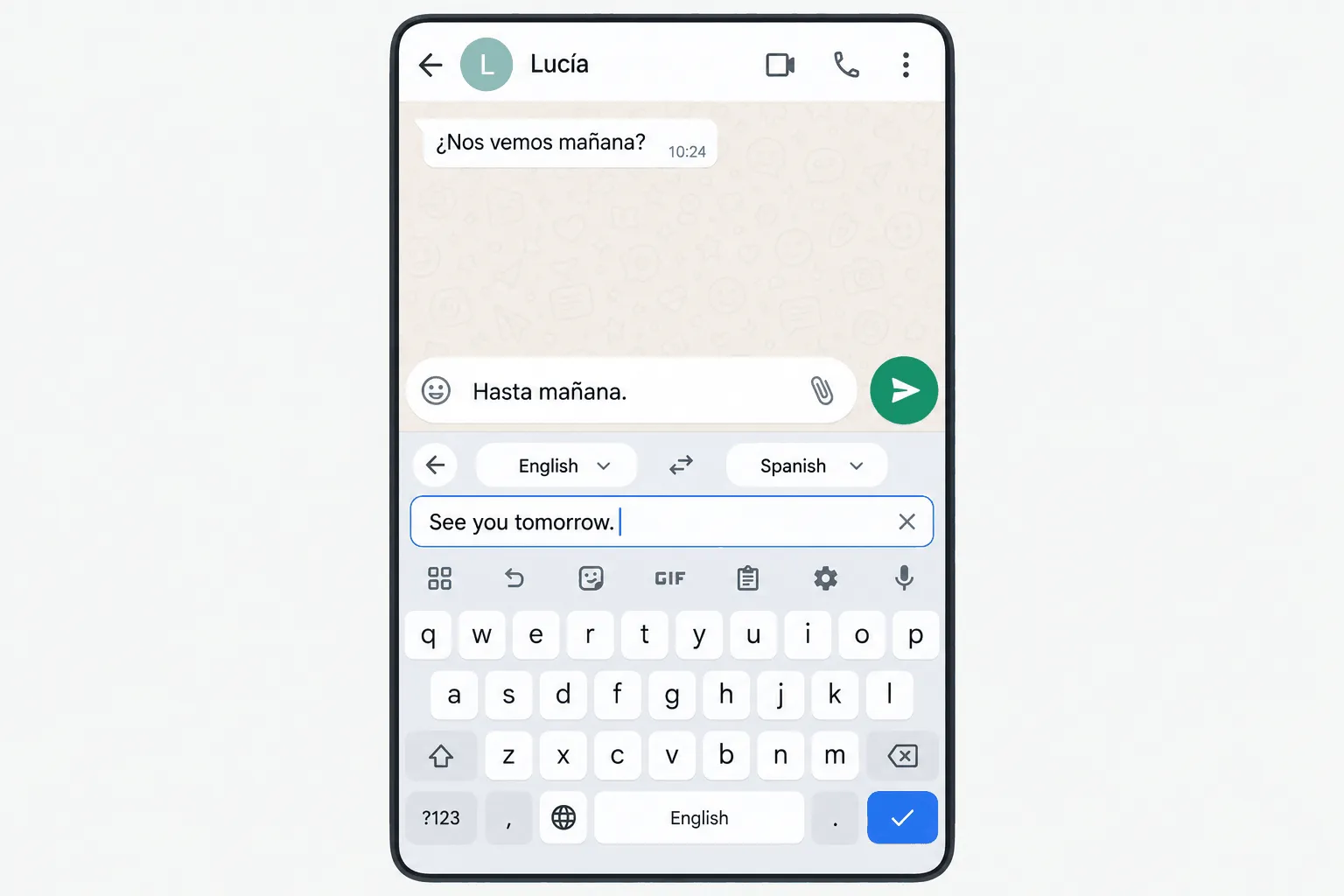
With Gboard (to translate your replies)
Gboard, Google’s keyboard, has a built-in translator that converts what you type before you send it. It’s the easiest way to reply in another language from your phone.
- Make sure Gboard is your keyboard. It’s the default on many Android phones, and it’s free on Google Play if not.
- Open the WhatsApp chat and tap the message box.
- Tap the Google Translate icon in the bar at the top of the keyboard. If it isn’t there, look in the four-squares menu.
- Choose the target language and type in your own. Gboard translates as you type.
- The translation fills the WhatsApp message box. Check it and send it.
The text is translated by Google Translate, so it leaves your phone. Gboard is also available for iPhone and has the same translate option.
With Google Translate’s Tap to Translate
This lets you read messages in any language Google Translate supports, even ones WhatsApp doesn’t. Here’s how to turn it on, per Google’s help page.
- Install Google Translate and open it.
- Go to settings, tap Tap to Translate and enable it.
- Allow it to display over other apps.
- In WhatsApp, press and hold a message and tap Copy.
- Tap the floating Google Translate icon and the translation appears over the chat.
You can also type a reply in that bubble, copy the translation and paste it into WhatsApp. It works, but it’s a lot of taps per message. On Android 10 and later you may need to paste the text into the bubble yourself. If Google Translate is your go-to tool, how to use Google Translate with WhatsApp also covers getting rid of the bubble and translating photos.
With Galaxy AI on a Samsung phone
Samsung Galaxy phones with Galaxy AI have a chat translation feature that works inside WhatsApp through Samsung Keyboard. People often search for it as Samsung Live Translate, although Live Translate is the name of the call feature. Chat translation handles both incoming messages and what you type. You turn it on in Settings, under Galaxy AI, in the Chat assist section (called Writing assist on newer models), where you also pick which apps it works in. Menu names change by model and One UI version, so check Samsung’s guide if you can’t find it.
How to translate WhatsApp messages on iPhone without the built-in feature
With iOS Translate (also works for replies)
Since iOS 15, the iPhone can translate any text you can select. In WhatsApp, it’s most useful on your own draft.
- Type your reply in the WhatsApp message box, in your language.
- Select the text and tap Translate in the menu that pops up (tap the arrow for more options if you don’t see it).
- Pick the target language.
- Tap Replace with Translation.
- Check it and send it.
To read an incoming message in a language WhatsApp doesn’t support, the quickest route is to copy it and use the next method.
With Apple Translate or Google Translate (copy and paste)
The classic method works with any language. Press and hold the message, tap Copy, paste it into Apple’s Translate app or Google Translate and read the result. To reply, type in the app, copy the translation and paste it into WhatsApp. Tap to Translate doesn’t exist on iPhone, so there’s no floating bubble.
How to translate WhatsApp messages on PC or Mac
WhatsApp Web and the desktop app can’t translate
As of October 2026, WhatsApp’s translation hasn’t come to WhatsApp Web or the Windows and Mac apps, and WhatsApp hasn’t given a date. On a computer you have two options.
Copy and paste into a web translator
Open Google Translate or DeepL in another tab, paste the message, write your reply, copy the translation, go back to the chat and paste it. Fine for a single message. For a whole conversation it gets tedious, since every exchange takes about seven steps.
With a WhatsApp Web extension
An extension puts the translator inside the WhatsApp Web page itself, which is where you spend the day if you handle customers or talk to people abroad from your computer. Ours is called TapScriber, a WhatsApp Web translator that works like this.
- A Translate button appears under each message in another language, and the translation shows up below the original.
- You type your reply in your language, click Translate in the bar above the message box and see the translation before using it. You can edit it or discard it. You always hit send yourself.
- Each chat remembers its language, so you can talk in Spanish with one contact and Portuguese with another without changing anything.
- It supports 25 languages and regional variants, and works on Chrome, Edge and Brave.
There’s no sign-up to start (you get 30 trial translations) and a free account gives you 300 a month. The text you choose to translate goes through our server only to be translated and isn’t stored. Voice notes and the mobile app are out of scope. The full setup is in how to translate messages on WhatsApp Web, and the extension is on the Chrome Web Store.
Tips for better translations
- Write short, complete sentences. Every translator does better with simple sentences than with long paragraphs full of abbreviations.
- Double-check numbers, dates and addresses. One wrong digit causes more trouble than an awkward phrase.
- Watch out for gender and formality. When translating into Spanish, French or German, the tool may pick the wrong gender or a formal or casual tone that doesn’t fit. Read it before you send. If most of your chats are in Spanish, how to translate WhatsApp from Spanish to English covers texting slang and tú versus usted.
- Keep the original in view. If something sounds off, comparing it with the source message clears it up.
- On anything important, ask for confirmation. A quick “did I get that right?” avoids mix-ups with orders, appointments or payments.
Frequently asked questions
Is there a translate button on WhatsApp?
Yes, in the Android and iPhone apps. Press and hold a message and tap Translate (on Android it may be in the three-dot menu, on iPhone under More). There's no translate button on WhatsApp Web or in the desktop apps.
How do I translate WhatsApp messages on iPhone?
Press and hold the message, tap More if needed and choose Translate. You download the language the first time. To translate what you write, select your draft and use the iOS Translate option.
Does WhatsApp translate the messages I send?
No. WhatsApp's translator only works on messages you receive. To write in another language on your phone, use Gboard's translate button or the iPhone's Translate option on your draft. On WhatsApp Web, an extension like TapScriber translates your draft and shows it to you before you send.
How do I translate WhatsApp messages on my computer?
Neither WhatsApp Web nor the desktop app has a translator. You can paste the text into Google Translate, or install a WhatsApp Web extension that adds a Translate button under each message.
Which keyboard translates in WhatsApp?
Gboard, Google's keyboard, has a translate button that works as you type, on Android and iPhone. On Samsung phones with Galaxy AI, Samsung Keyboard can translate chats too. Both send the text to a server to translate it.


